# Clever Case Documentation

## Intro

Clever Case is an all-in-one case management software that streamlines your workflow and makes it easy to manage client information, track billable hours, take client payments, and run financial reports.

## Overview

Time, Matters, People

## Table of contents

* [Navigation](/navigation)
  * [Top of Page](/navigation/top-of-page)
  * [Left Side](/navigation/left-side)
  * [Settings / Help & Support / Roadmap / Logout](/navigation/settings-help-and-support-roadmap-logout)
    * [Settings](/navigation/settings-help-and-support-roadmap-logout/settings)
* [Dashboard](/dashboard)
  * [Recent Matters](/dashboard/recent-matters)
  * [Your Time This Week](/dashboard/your-time-this-week)
  * [Recent Payments](/dashboard/recent-payments)
  * [Recent People](/dashboard/recent-people)
  * [Tasks](/dashboard/tasks)
  * [Events](/dashboard/events)
* [People](/people)
  * [All People](/people/all-people)
  * [My People](/people/my-people)
* [Matters](/matters)
  * [All Matters](/matters/all-matters)
  * [Recent Matters](/matters/recent-matters)
  * [My Matters](/matters/my-matters)
* [Accounting](/accounting)
  * [Invoicing](/accounting/invoicing)
  * [Pending Invoices](/accounting/pending-invoices)
  * [Print and Email Invoices](/accounting/print-and-email-invoices)
  * [Accounting Ledger](/accounting/accounting-ledger)
  * [Pending Trust Transfers](/accounting/pending-trust-transfers)
* [Reports](/reports)
  * [Productivity](/reports/productivity)
  * [My Aged Receivables](/reports/your-aged-receivables)
  * [Aged Receivables](/reports/aged-receivables)
  * [My Rates](/reports/your-rates)
* [Calendar](/calendar)
* [Tasks](/tasks)
  * [My Tasks](/tasks/your-tasks)
  * [Organization Tasks](/tasks/organization-tasks)
  * [New Task](/tasks/new-task)
* [Time](/time)
  * [My Time](/time/your-time)
  * [Organization Time](/time/organization-time)
  * [New Timecard](/time/new-timecard)


# Navigation

Getting around Clever Case

* [Top of Page](/navigation/top-of-page)
* [Left Side](/navigation/left-side)
* [Settings / Help & Support / Roadmap / Logout](/navigation/settings-help-and-support-roadmap-logout)


# Top of Page

The icons and links at the top of the page are always visible.

<div data-full-width="false"><figure><img src="https://673938552-files.gitbook.io/~/files/v0/b/gitbook-x-prod.appspot.com/o/spaces%2FQ95lK9C9PfhjfdSpOJuJ%2Fuploads%2FoAfv4ak30aPkpTqt2UUS%2FScreenshot%202024-10-21%20at%201.00.32%E2%80%AFPM.png?alt=media&amp;token=b13620f6-9716-476d-b3b8-a7c7e75652c7" alt="" width="375"><figcaption><p>Navigation - top of page</p></figcaption></figure></div>

**Quick Add**

Click on the plus icon "＋" in the header to quickly add the following:

1. New Person
2. New Matter
3. New Task
4. New Event
5. New Expense

<figure><img src="https://673938552-files.gitbook.io/~/files/v0/b/gitbook-x-prod.appspot.com/o/spaces%2FQ95lK9C9PfhjfdSpOJuJ%2Fuploads%2FsQBETyInXBNeTsoO0JC3%2FQuick%20Add.png?alt=media&amp;token=971c036c-62e8-4ae4-80fa-2d0666f4cc44" alt="Quick Add" width="251"><figcaption><p>Quick Add</p></figcaption></figure>

**Recent**

Click on the star icon "☆" icon to show recent matters, clicking a matter will lead to its matter page.

<figure><img src="https://673938552-files.gitbook.io/~/files/v0/b/gitbook-x-prod.appspot.com/o/spaces%2FQ95lK9C9PfhjfdSpOJuJ%2Fuploads%2F9FbyI3VD9XwwaeoNqYoZ%2FScreenshot%202024-10-21%20at%204.29.08%E2%80%AFPM.png?alt=media&amp;token=c70f1a86-70ac-4938-8851-b63f8c9c80a4" alt="" width="185"><figcaption><p>Recent Matters</p></figcaption></figure>

**Notifications**

Click on the "Bell" icon to view notifications.

<figure><img src="https://673938552-files.gitbook.io/~/files/v0/b/gitbook-x-prod.appspot.com/o/spaces%2FQ95lK9C9PfhjfdSpOJuJ%2Fuploads%2FsWOyEYeg7hOxx2MSp3qP%2FScreenshot%202024-10-21%20at%204.25.34%E2%80%AFPM.png?alt=media&amp;token=07fd1f3a-297e-4e50-b243-c7b61d619669" alt="" width="375"><figcaption><p>Notifications</p></figcaption></figure>

**Timecard Widget**

Click on the clock dropdown icon (highlighted in red in the image below) to expand and collapse the timecard widget.

<figure><img src="https://673938552-files.gitbook.io/~/files/v0/b/gitbook-x-prod.appspot.com/o/spaces%2FQ95lK9C9PfhjfdSpOJuJ%2Fuploads%2FHYo0Nr6Dj51MTcdjQFlL%2FScreenshot%202024-10-21%20at%202.47.56%E2%80%AFPM.png?alt=media&amp;token=8b0b3789-d372-4000-953d-d2cc28f1779b" alt="" width="226"><figcaption><p>Timecard widget collapsed</p></figcaption></figure>

Click the play icon "▶" in the header to restart the current timecard, if one is running click the pause icon "⏸︎" to stop it.

<figure><img src="https://673938552-files.gitbook.io/~/files/v0/b/gitbook-x-prod.appspot.com/o/spaces%2FQ95lK9C9PfhjfdSpOJuJ%2Fuploads%2F4l8auAPaFTu1sAuDPeIL%2FScreenshot%202024-10-21%20at%202.51.23%E2%80%AFPM.png?alt=media&amp;token=bcf73ad2-ce58-4e63-8f12-7a196b3e3de7" alt="" width="375"><figcaption><p>Timecard Widget</p></figcaption></figure>

Click the play icon "▶" to start a timecard, if one is already running click the "Pause" icon to stop it&#x20;

Click the ellipses (...) next to a timecard to edit / delete timecard

Click "My Time" to navigate to the "My Time" page

Click "Unpin All" to unpin all timecards from the pinned section in the widget

Click "New Timecard" to create a new timecard


# Left Side

Move the mouse to the left of the screen to expand the Navigation pane

Hover the mouse over the 3 horizontal bars to the right of the Clever Case logo,&#x20;

<figure><img src="https://673938552-files.gitbook.io/~/files/v0/b/gitbook-x-prod.appspot.com/o/spaces%2FQ95lK9C9PfhjfdSpOJuJ%2Fuploads%2F3IwXFzWSuWl2SEDhtxEA%2Fnavigation%20horizontal%20bars.png?alt=media&amp;token=319f5b0d-7571-4850-ab8d-fe7807ea6b9b" alt="Navigation horizontal bars" width="249"><figcaption><p>Navigation horizontal bars</p></figcaption></figure>

the bars will change to an arrow, click it to keep the pane expanded

<figure><img src="https://673938552-files.gitbook.io/~/files/v0/b/gitbook-x-prod.appspot.com/o/spaces%2FQ95lK9C9PfhjfdSpOJuJ%2Fuploads%2FhhK7YGqfHPrSvOH81JRo%2Fnavigation%20arrow.png?alt=media&amp;token=99434d2e-2ec3-4b6a-9683-e073f816c235" alt="Navigation arrow" width="252"><figcaption><p>Navigation arrow</p></figcaption></figure>

The expanded navigation bar will display the users name and the organization they are associated with

<figure><img src="https://673938552-files.gitbook.io/~/files/v0/b/gitbook-x-prod.appspot.com/o/spaces%2FQ95lK9C9PfhjfdSpOJuJ%2Fuploads%2FMbHBdSfoeARr7LzbSB95%2Fnavigation%20top.png?alt=media&amp;token=e451c3e3-1ed1-4332-be55-77313d563143" alt="Navigation menu" width="253"><figcaption><p>Navigation menu</p></figcaption></figure>

The Navigation menu provides quick access to the following sections

[Dashboard](/dashboard)

[People](/people)

[Matters](/matters)

[Accounting](/accounting)

[Reports](/reports)

[Calendar](/calendar)

[Tasks](/tasks)

[Time](/time)


# Settings / Help / Roadmap / Logout

At the bottom of the left side navigation bar there are links to the following

<figure><img src="https://673938552-files.gitbook.io/~/files/v0/b/gitbook-x-prod.appspot.com/o/spaces%2FQ95lK9C9PfhjfdSpOJuJ%2Fuploads%2FNHkQsekh04Xk0k0bkRgT%2FSetting%20help%20roadmap%20logout.png?alt=media&amp;token=9f1868c6-7f97-4300-9438-10b615940c2e" alt="Settings, Help, Roadmap &#x26; Logout" width="248"><figcaption></figcaption></figure>

The "gear" icon is where you can configure user, application and organization settings. [Click here for more](/navigation/settings-help-and-support-roadmap-logout/settings).

The "question mark" icon is a link to this documentation

The "road" icon is a link to the Clever Case product roadmap

The "logout" icon will log you out of Clever Case


# Settings

Manage user and organization settings

Click the gear icon in the left hand navigation to open settings

<figure><img src="https://673938552-files.gitbook.io/~/files/v0/b/gitbook-x-prod.appspot.com/o/spaces%2FQ95lK9C9PfhjfdSpOJuJ%2Fuploads%2FZTvFLP8WPVWFCwHhIomY%2FSettings.png?alt=media&amp;token=5962ca2b-a6c9-499e-8ae8-3d454eb14572" alt="Personal -> Account Information" width="563"><figcaption><p>Account Information</p></figcaption></figure>

### Personal -> Account Information

It will default to Personal -> Account Information

On this view you can update your name, location and default hourly billing rate

### Personal -> Security

Use this view to update your password

<figure><img src="https://673938552-files.gitbook.io/~/files/v0/b/gitbook-x-prod.appspot.com/o/spaces%2FQ95lK9C9PfhjfdSpOJuJ%2Fuploads%2FFHY7MxiYfQFlVOveXYE8%2FSettings%20Security.png?alt=media&amp;token=6922caf9-0442-4b4d-9711-5fbf0a586b2c" alt="Personal -> Security" width="375"><figcaption><p>Security</p></figcaption></figure>

### Personal -> Notifications

Use this view to set up notifications for Invoices, matter creation and assignment, matter PNC time tracking, reminders and task & event assignment

<figure><img src="https://673938552-files.gitbook.io/~/files/v0/b/gitbook-x-prod.appspot.com/o/spaces%2FQ95lK9C9PfhjfdSpOJuJ%2Fuploads%2FTHzimTtnCWihn6uJDttx%2FSettings%20Notifications.png?alt=media&amp;token=0547d321-cdd7-40bc-9875-9643354f0fa7" alt="Personal -> Notifications" width="375"><figcaption><p>Notifications</p></figcaption></figure>

### Organization -> Organization Information

Use this view to add / edit organization information such as name, website, time zone, and add a logo and locations

<figure><img src="https://673938552-files.gitbook.io/~/files/v0/b/gitbook-x-prod.appspot.com/o/spaces%2FQ95lK9C9PfhjfdSpOJuJ%2Fuploads%2FZxWuyEmfkwg8AO1tnVPb%2FSettings%20Organization%20Information.png?alt=media&amp;token=896e1710-09ef-40b4-92c5-0ee3c31fc8ba" alt="Organization -> Organization Information" width="563"><figcaption><p>Organization Information</p></figcaption></figure>

### Organization -> Roles

Use this view to set Practice Roles and default rates

<figure><img src="https://673938552-files.gitbook.io/~/files/v0/b/gitbook-x-prod.appspot.com/o/spaces%2FQ95lK9C9PfhjfdSpOJuJ%2Fuploads%2F5QiQA6xMyPVNJy2V0m1e%2FSettings%20Roles.png?alt=media&amp;token=16e7b330-1a25-40b7-b35d-fd5ca8f67f18" alt="Organization -> Roles" width="563"><figcaption><p>Roles</p></figcaption></figure>

### Organization -> Matter Roles

Use this view to set matter specific roles

<figure><img src="https://673938552-files.gitbook.io/~/files/v0/b/gitbook-x-prod.appspot.com/o/spaces%2FQ95lK9C9PfhjfdSpOJuJ%2Fuploads%2FhbSxq2ZiW9efDxXHJSOT%2FSettings%20matter%20roles.png?alt=media&amp;token=d0a23019-b106-42cd-8a38-d95e852074c5" alt="Organization -> Matter Roles" width="563"><figcaption><p>Matter Roles</p></figcaption></figure>

### Organization -> Person Tags

Use this view to create tags for people

<figure><img src="https://673938552-files.gitbook.io/~/files/v0/b/gitbook-x-prod.appspot.com/o/spaces%2FQ95lK9C9PfhjfdSpOJuJ%2Fuploads%2FeuOe81kvdaTwrt9Xjv2F%2FSettings%20person%20tags.png?alt=media&amp;token=e854bbbe-6d99-4a11-89e1-233b8f8cf123" alt="Organization -> Person Tags" width="563"><figcaption><p>Person Tags</p></figcaption></figure>

### Organization -> Matter Categories

Use this view to create categories and sub-categories for Matters

<figure><img src="https://673938552-files.gitbook.io/~/files/v0/b/gitbook-x-prod.appspot.com/o/spaces%2FQ95lK9C9PfhjfdSpOJuJ%2Fuploads%2FfFqb4M5tvcrM2QrfSaXP%2FSettings%20matter%20categories.png?alt=media&amp;token=bedf454f-889d-40a5-9626-985de056ef74" alt="Organization -> Matter Categories" width="563"><figcaption><p>Matter Categories</p></figcaption></figure>

### Organization -> User Management

Use this view to manage users in your organization

<figure><img src="https://673938552-files.gitbook.io/~/files/v0/b/gitbook-x-prod.appspot.com/o/spaces%2FQ95lK9C9PfhjfdSpOJuJ%2Fuploads%2F1Ru1D2Dcvbl0ynhmP2bR%2FSettings%20user%20management.png?alt=media&amp;token=a4225fb6-615d-4923-a18d-66ff87021769" alt="Organization -> User Management" width="563"><figcaption><p>User Management</p></figcaption></figure>

### Organization -> Invoice Settings

Use this view to add / edit invoice settings, such as default payment terms, taxes, default invoice address, any notes you want to show on invoices and terms & conditions

<figure><img src="https://673938552-files.gitbook.io/~/files/v0/b/gitbook-x-prod.appspot.com/o/spaces%2FQ95lK9C9PfhjfdSpOJuJ%2Fuploads%2FGV0xskLv84IAt3mwpwRA%2FSettings%20invoice%20settings.png?alt=media&amp;token=0bdd4134-c55b-4b14-b297-6ead1552140c" alt="Organization -> Invoice Settings" width="563"><figcaption><p>Invoice Settings</p></figcaption></figure>

### Organization -> Quickbooks Integration

Use this view to configure your Quickbooks Online integration

<figure><img src="https://673938552-files.gitbook.io/~/files/v0/b/gitbook-x-prod.appspot.com/o/spaces%2FQ95lK9C9PfhjfdSpOJuJ%2Fuploads%2FRZ46rBHWsZQl04o03UzE%2FSettings%20integrations%20quickbooks.png?alt=media&amp;token=14544187-1f7f-484e-b24a-bc47c34c289c" alt="Organization -> Quickbooks Integration" width="563"><figcaption><p>Quickbooks Integration</p></figcaption></figure>

### Organization -> Payment Integration

Use this view to configure your Confido Payments integration

<figure><img src="https://673938552-files.gitbook.io/~/files/v0/b/gitbook-x-prod.appspot.com/o/spaces%2FQ95lK9C9PfhjfdSpOJuJ%2Fuploads%2FmENjp5IuPb1PNbRVhSTO%2FSettings%20integrations%20confido%20.png?alt=media&amp;token=710b815b-7123-4194-b64a-dddb8d7d878d" alt="Organization -> Confido Payments" width="563"><figcaption><p>Confido Payments</p></figcaption></figure>

### Organization -> Xero Integration

Use this view to configure your Xero accounting integration

<figure><img src="https://673938552-files.gitbook.io/~/files/v0/b/gitbook-x-prod.appspot.com/o/spaces%2FQ95lK9C9PfhjfdSpOJuJ%2Fuploads%2FWcRgnD3RzXsIbc75U4m7%2FSettings%20integrations%20xero.png?alt=media&amp;token=78b5e957-9eb6-42d3-9897-4e82a1fb2b83" alt="Organization -> Xero Integration" width="563"><figcaption><p>Xero Integration</p></figcaption></figure>

### Organization -> HubSpot Integration

Use this view to configure your HubSpot marketing integration

<figure><img src="https://673938552-files.gitbook.io/~/files/v0/b/gitbook-x-prod.appspot.com/o/spaces%2FQ95lK9C9PfhjfdSpOJuJ%2Fuploads%2F1nKqrecmFmIRCoPvvPqA%2FSettings%20integrations%20hubspot.png?alt=media&amp;token=7d8d4d61-043b-4fc2-b25a-7bc187abafa9" alt="Organization -> HubSpot Integration" width="563"><figcaption><p>HubSpot Integration</p></figcaption></figure>


# Dashboard

## Introduction

Clever Case's home screen serves as a high-level dashboard and home base for all of your clients, matters, and practice management needs. From here, you can easily see an overview of all your active matters, upcoming deadlines, and tasks that need attention. You can also access all of your client data and manage your financials, trust accounting, and billing.

* [Recent Matters](/dashboard/recent-matters)
* [Your Time This Week](/dashboard/your-time-this-week)
* [Recent Payments](/dashboard/recent-payments)
* [Recent People](/dashboard/recent-people)
* [Tasks](/dashboard/tasks)
* [Events](/dashboard/events)


# Recent Matters

This section of the dashboard will show the five most recent matters you have viewed.

Click the "New Matter" button in the top right corner to create a new matter.&#x20;

Click "Go to Recent Matters" to go to the recent matters view

<figure><img src="https://673938552-files.gitbook.io/~/files/v0/b/gitbook-x-prod.appspot.com/o/spaces%2FQ95lK9C9PfhjfdSpOJuJ%2Fuploads%2FsYpuI3HNthhVKsvwnuPB%2FRecentMatters.png?alt=media&amp;token=ea9734f7-d79a-4fc0-97a3-2b4657230d3d" alt="Recent Matters section on the dashboard" width="375"><figcaption><p>Recent Matters section on the dashboard</p></figcaption></figure>


# My Time This Week

This section shows all of your time for the current week.

Click the "New Timecard" button in the top right corner to create a new timecard.

Click "Go to My Time" to go to My Time view.

<figure><img src="https://673938552-files.gitbook.io/~/files/v0/b/gitbook-x-prod.appspot.com/o/spaces%2FQ95lK9C9PfhjfdSpOJuJ%2Fuploads%2F5sH5tQ9XjnRkp7x4C8d6%2FMy%20time%20this%20week.png?alt=media&amp;token=d4a5009e-26dd-4a70-81ca-a09628485a0b" alt="My time this week" width="563"><figcaption><p>My Time This Week</p></figcaption></figure>


# Recent Payments

This section of the dashboard will show the five most recent payments received.

<figure><img src="https://673938552-files.gitbook.io/~/files/v0/b/gitbook-x-prod.appspot.com/o/spaces%2FQ95lK9C9PfhjfdSpOJuJ%2Fuploads%2FUrnLyfgw4sYRKacogkr2%2FRecent%20Payments.png?alt=media&amp;token=6098d338-5005-4adf-b465-47e6d110a4e8" alt="Recent Payments section on the dashboard" width="375"><figcaption><p>Recent Payments section on the dashboard</p></figcaption></figure>


# Recent People

This section of the dashboard will show the five most recent people you have viewed.

If they have contact information it will be listed below their name.

Click "New Person" to create a new people record in the system.

Click "Go to People Index" to go to the People view.

<figure><img src="https://673938552-files.gitbook.io/~/files/v0/b/gitbook-x-prod.appspot.com/o/spaces%2FQ95lK9C9PfhjfdSpOJuJ%2Fuploads%2FzfGwZugRTjGxRI4ZGryV%2FRecent%20People.png?alt=media&amp;token=a9551012-ca1f-4dc7-9fb4-04753918100e" alt="Recent People section on the dashboard" width="375"><figcaption><p>Recent People section on the dashboard</p></figcaption></figure>


# Tasks

This section of the dashboard will show upcoming tasks for the next 7 days.

It will show you how many tasks you have for the upcoming week

If there are any overdue tasks you will see a notification

Click "New Task" to create a task

Click "Go to My Tasks" to go to the tasks view

<figure><img src="https://673938552-files.gitbook.io/~/files/v0/b/gitbook-x-prod.appspot.com/o/spaces%2FQ95lK9C9PfhjfdSpOJuJ%2Fuploads%2FNUklMpKNkIXIHyHo5Dsj%2FDashboard%20Tasks.png?alt=media&amp;token=2da6489c-aef2-4a92-854c-02ac4da843f0" alt="Tasks section on the dashboard"><figcaption><p>Tasks section on the dashboard</p></figcaption></figure>

In the "Actions" column click on the ellipses to perform the following actions on a task (Edit, Delete, Start, Complete, Waiting, Deferred)

<figure><img src="https://673938552-files.gitbook.io/~/files/v0/b/gitbook-x-prod.appspot.com/o/spaces%2FQ95lK9C9PfhjfdSpOJuJ%2Fuploads%2FPh4xvOKZ8atZqtrqp35p%2FDashboard%20Tasks%20Actions.png?alt=media&amp;token=befa8393-654b-4c00-9a09-91aaec0c6cdc" alt="Tasks actions on the dashboard" width="164"><figcaption><p>Tasks actions on the dashboard</p></figcaption></figure>


# Events

This section of the dashboard will show upcoming events for the next 7 days.

Click "New Event" to create a new event

Click "Go to Calendar" to view the calendar

<figure><img src="https://673938552-files.gitbook.io/~/files/v0/b/gitbook-x-prod.appspot.com/o/spaces%2FQ95lK9C9PfhjfdSpOJuJ%2Fuploads%2F1NCWadQJZaygEELXYgHD%2FDashboard%20Events.png?alt=media&amp;token=7b28dea5-77e5-4db9-9110-688f2954db5c" alt="Events section on the dashboard" width="375"><figcaption><p>Events section on the dashboard</p></figcaption></figure>


# People

## Introduction

Adding a new person/client is incredibly easy with Clever Case. Simply enter in the relevant information and all of the details for that person is automatically connected and stored together in one place. You can easily view all of the related parties, documents, notes, and other pertinent information associated with that person.

* [All People](/people/all-people)
* [My People](/people/my-people)


# All People / My People

The "All People" view shows all people associated with your organization. The "My People" view shows any people for which you are an attorney or para legal for.

Use the search feature to find anyone

Click "New Person" button to create a new person

Click the meeple with a checkmark to perform conflict checks

Click the download folder icon to download a csv of All / My People

Click on the person's name to view further details, including matters, invoices, transactions etc.

Click the ellipses in the "Actions" column to view, edit or delete a person's record

<figure><img src="https://673938552-files.gitbook.io/~/files/v0/b/gitbook-x-prod.appspot.com/o/spaces%2FQ95lK9C9PfhjfdSpOJuJ%2Fuploads%2FvbQBiOy4KnReR8fpSjZL%2FAll%20People.png?alt=media&amp;token=32dfe7fe-4ee0-4cd9-8311-bf7b13209877" alt="My People / All People view "><figcaption><p>My People / All People view</p></figcaption></figure>

### Filtering

Click the "Filters" button to filter people records, you can filter by Type, Role, Primary Attorney, Paralegal, Minimum last contact date, Maximum last contact date, Lead Stage, you can also filter or exclude people with specific tags

<div><figure><img src="https://673938552-files.gitbook.io/~/files/v0/b/gitbook-x-prod.appspot.com/o/spaces%2FQ95lK9C9PfhjfdSpOJuJ%2Fuploads%2FTimeEuuecJuusko8kn7E%2FPeople%20Filters%201.png?alt=media&amp;token=917ce907-d78f-4f04-b50c-a8f54d835c25" alt="People filters" width="301"><figcaption><p>People filters</p></figcaption></figure> <figure><img src="https://673938552-files.gitbook.io/~/files/v0/b/gitbook-x-prod.appspot.com/o/spaces%2FQ95lK9C9PfhjfdSpOJuJ%2Fuploads%2FKYQHVZpO7QwUDxJjgbcY%2FPeople%20Filters%202.png?alt=media&amp;token=f7550173-d604-415d-8c67-db9e74b122dd" alt="Additional people filters" width="300"><figcaption><p>Additional people filters</p></figcaption></figure></div>


# Conflict Check

This page provides you with a form to check the database for conflicts that may exists.

This page also allows you to upload a csv or use of the simpler legacy conflict check.


# Person Page

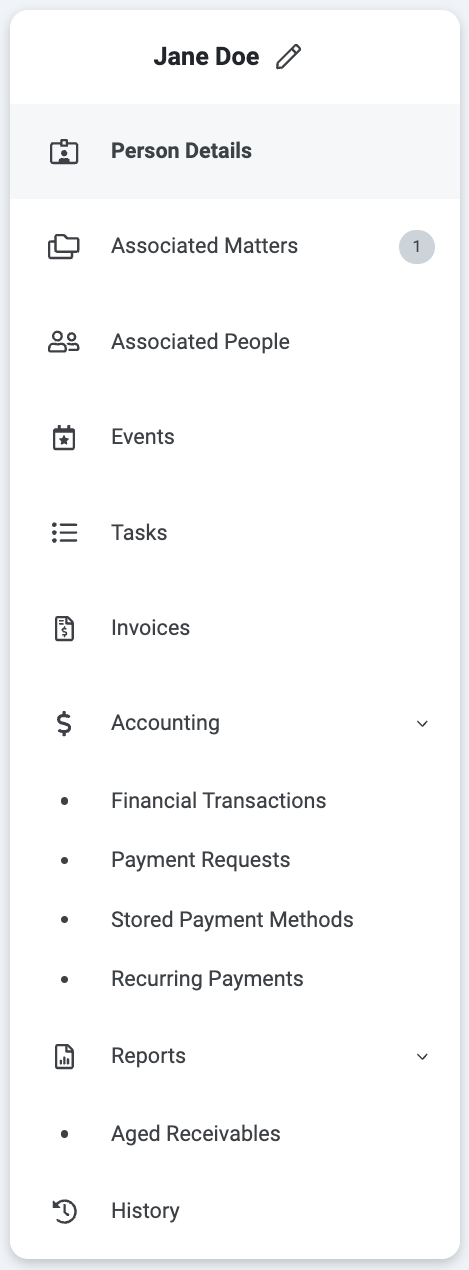
When clicking the name of an individual/entity on the people page, it will take you to a page with all related details.

The left panel with navigate you to details related to the individual/entity.

<div align="center"><figure><img src="https://673938552-files.gitbook.io/~/files/v0/b/gitbook-x-prod.appspot.com/o/spaces%2FQ95lK9C9PfhjfdSpOJuJ%2Fuploads%2FZJvhKQD2FlOv5tvtiWOt%2FScreenshot%202024-10-22%20at%209.17.14%E2%80%AFAM.png?alt=media&amp;token=4c1df269-8865-41a8-bbbe-0a497e5f96e8" alt="" width="235"><figcaption></figcaption></figure></div>

From the "Individual/Entity Details" section, you can view and/or edit:

1. General Information
2. Addresses
3. Contact Information
4. CRM
5. Internal Information
6. Confido Legal Integration Information

Balance section can be used to take and view payments related to the individual/entity.

Notes section can be used to take and view notes related to the individual/entity.


# Matters

## Introduction

Adding a matter is incredibly easy with Clever Case. Simply enter in the relevant information and all of the details for that matter are automatically connected and stored together in one place. You can easily view all of the related parties, documents, notes, and other pertinent information associated with that matter.

* [All Matters](/matters/all-matters)
* [Recent Matters](/matters/recent-matters)
* [My Matters](/matters/my-matters)


# All Matters

This page shows a paginated view of all matters in your organization.&#x20;

<figure><img src="https://673938552-files.gitbook.io/~/files/v0/b/gitbook-x-prod.appspot.com/o/spaces%2FQ95lK9C9PfhjfdSpOJuJ%2Fuploads%2FXvGv2mImf6ufMehYbblZ%2FScreenshot%202024-10-22%20at%2012.44.38%E2%80%AFPM.png?alt=media&amp;token=e29ad5a9-37fe-4b0a-9615-69a32dcc78ee" alt=""><figcaption></figcaption></figure>

You can search through all matters from the search box.

Filters can be applied to show matters matching specified criteria.

You can export a csv of selected matters using the "folder" icon.

The "New Matter" button will open the matter form to create a new matter.


# Recent Matters

This page shows all matters you have recently viewed in a paginated table.


# My Matters

This page will show only matters assigned to or created by you.


# Accounting

## Introduction

Clever Case offers an industry-leading invoicing feature that allows you to enter, review, and get time billed on a highly professional invoice. Our invoice templates are fully customizable to fit your needs and can be sent to clients directly from Clever Case. With Clever Case's easy-to-use invoicing, you can easily track outstanding invoices and manage your cash flow.

* [Invoicing](/accounting/invoicing)
* [Pending Invoices](/accounting/pending-invoices)
* [Print and Email Invoices](/accounting/print-and-email-invoices)
* [Accounting Ledger](/accounting/accounting-ledger)
* [Pending Trust Transfers](/accounting/pending-trust-transfers)


# Invoicing

The invoicing page gives you a paginated view of all invoices in your organization.

<figure><img src="https://673938552-files.gitbook.io/~/files/v0/b/gitbook-x-prod.appspot.com/o/spaces%2FQ95lK9C9PfhjfdSpOJuJ%2Fuploads%2FE38dGXMRn2gUbwhlZNph%2FScreenshot%202024-10-22%20at%202.07.46%E2%80%AFPM.png?alt=media&amp;token=b3d19748-89e4-4992-8c0f-9f14296f573e" alt=""><figcaption></figcaption></figure>

Filters can be applied to show invoices matching specified criteria.

Clicking "Export CSV" will export a .csv file with selections made in the template. (No selection will download all invoices)

Clicking "Export/Import CSV" will export a .csv file to be edited and imported back.

Clicking "Import" will take an invoice .csv file to be imported into Clever Case.

Clicking "Batch Actions" button will show you applicable actions to perform on multiple selected invoices.

Clicking " New" button will you the option to create a new single or batch invoice(s).


# Pending Invoices

This page shows all pending invoices.


# 3rd Party Export

This page is for exporting to an integrated 3rd party. After selecting an invoice(s) clicking the "Export Invoices" button will give you the option to chose where you want the export to go.


# Print and Email Invoices

This page will show all invoices that are ready to be delivered to clients.&#x20;

Clicking the "Deliver" button, you will be show deliver options: Print, Email, Email and Print.

In the table if a preference is set for the client, you will see the preferred delivery method.


# Accounting Ledger

This page will show all invoice transaction history.

Clicking the "Account Transfer" button will allow transfer funds between accounts.

The action ellipsis on a transaction will give you the option to revert the transaction.


# Pending Trust Transfers

This page shows all pending trust transfers.


# Reports

* [Productivity](/reports/productivity)
* [My Aged Receivables](/reports/your-aged-receivables)
* [Aged Receivables](/reports/aged-receivables)
* [My Rates](/reports/your-rates)


# Productivity

The productivity report shows hours reported by each user in the following categories

* Hourly Billable
* Hourly Non-billable
* Flat Fee (Billable and Non Billable)
* Contingency (Billable and Non Billable)
* Pro-Bono (Billable and Non Billable)
* Total hours

The report can be downloaded as a csv by clicking the folder icon.&#x20;

The report can be filtered, where you can search for a specific user and also by Start Date and End Date.&#x20;


# My Aged Receivables

The "My Aged Receivables" report shows amounts owed on invoices that have been sent but not yet paid, broken down by age and matter

<figure><img src="https://673938552-files.gitbook.io/~/files/v0/b/gitbook-x-prod.appspot.com/o/spaces%2FQ95lK9C9PfhjfdSpOJuJ%2Fuploads%2FcYTRFKOkRueobtSqbJJj%2FMy%20Aged%20Receivables%20.png?alt=media&amp;token=f8d4568b-c12f-41bd-991a-ce6f78789f4e" alt="My Aged Receivables"><figcaption><p>My Aged Receivables</p></figcaption></figure>

Aged Receivable can be exported to csv with the "Export CSV" button.&#x20;

They can also be filtered by Location, Client, Matter Tags Required and Matter Tags Excluded, you can also choose to display Matters with Zero balances&#x20;


# Aged Receivables

The "Aged Receivables" report shows amounts owed on invoices that have been sent but not yet paid, broken down by age and matter for the entire organization.

<figure><img src="https://673938552-files.gitbook.io/~/files/v0/b/gitbook-x-prod.appspot.com/o/spaces%2FQ95lK9C9PfhjfdSpOJuJ%2Fuploads%2FLikFmdtiK1FsU9s6PWLk%2FAged%20Receivables.png?alt=media&amp;token=6cabb94c-911c-4eed-9c53-c1ec546a832e" alt="Aged Receivables"><figcaption><p>Aged Receivables</p></figcaption></figure>

Aged Receivables can be exported to csv with the "Export CSV" button.

They can also be filtered by Location, Client, Matter Tags Required and Matter Tags Excluded, you can also choose to display Matters with Zero balances


# My Rates

My Rates lets you see all custom rates you have across matters and clients.&#x20;

<figure><img src="https://673938552-files.gitbook.io/~/files/v0/b/gitbook-x-prod.appspot.com/o/spaces%2FQ95lK9C9PfhjfdSpOJuJ%2Fuploads%2FKWjrkzukB1CjFkSuGcsY%2FMy%20Rates.png?alt=media&amp;token=5f422913-5669-49bd-8613-5f2ea7eb8d00" alt="My Rates"><figcaption><p>My Rates</p></figcaption></figure>

You can filter by Matter Tags Required, Client and Status with the "Filters" button

The actions menu (...) will let you edit or delete a rate

Edit a rate

<figure><img src="https://673938552-files.gitbook.io/~/files/v0/b/gitbook-x-prod.appspot.com/o/spaces%2FQ95lK9C9PfhjfdSpOJuJ%2Fuploads%2FaZ5H9rxVqx4Qe2i4bdji%2FEdit%20Rate.png?alt=media&amp;token=dd8de941-1093-43ca-89c6-fabd183c24f8" alt="Edit Rate" width="375"><figcaption><p>Edit Rate</p></figcaption></figure>

You can set Rate Type (Role, User, or Range)

Select the user, set the rate and apply a discount percent if needed.&#x20;


# Calendar

The calendar view shows a list of all events for the current month, you can view by day, my week or by month.&#x20;

Click on an event to edit it

Click Add Event button to create a new event

<figure><img src="https://673938552-files.gitbook.io/~/files/v0/b/gitbook-x-prod.appspot.com/o/spaces%2FQ95lK9C9PfhjfdSpOJuJ%2Fuploads%2F47AxoI5Hf73evQrk9F96%2FCalendar.png?alt=media&amp;token=022f3167-9a80-45e5-a4d3-fcef7f323d15" alt="Calendar"><figcaption><p>Calendar</p></figcaption></figure>

New Event

<figure><img src="https://673938552-files.gitbook.io/~/files/v0/b/gitbook-x-prod.appspot.com/o/spaces%2FQ95lK9C9PfhjfdSpOJuJ%2Fuploads%2Fw5dN4TngYYtdXFDLzVU0%2FNew%20Event.png?alt=media&amp;token=01c696e7-2a3f-4957-add8-9c9cad067a3d" alt="New Event" width="375"><figcaption><p>New Event</p></figcaption></figure>


# Tasks

## Introduction

Clever Case's task assignment and management feature allows you to easily assign tasks to yourself or your team and track their progress. With Clever Case's task management, you can stay on top of deadlines and ensure that your matters are moving forward efficiently.

* [My Tasks](/tasks/your-tasks)
* [Organization Tasks](/tasks/organization-tasks)


# My Tasks

The "My Tasks' view shows a list of tasks that are assigned to you.

You can also see a list of tasks that you created on the "Created" tab.

<figure><img src="https://673938552-files.gitbook.io/~/files/v0/b/gitbook-x-prod.appspot.com/o/spaces%2FQ95lK9C9PfhjfdSpOJuJ%2Fuploads%2FbwNluuIaGKPWPxxNjen0%2FMy%20Tasks.png?alt=media&amp;token=9c878ce3-0221-44fe-8f9d-54b6109700f4" alt="My Tasks"><figcaption><p>My Tasks</p></figcaption></figure>

Click on a task to update it.&#x20;

Tasks can be filtered on Start Due Date From, End Due Date To, Status and Priority by clicking the "Filters" button

Click on "New Task" to create a new task.&#x20;

The actions menu (...) allows editing or deleting a task.&#x20;


# Organization Tasks

Organization Tasks show all the tasks across your organization, you can filter on Start Due Date From, End Due Date To, Status and Priority, Matters, Client, Assignee, and Creator by clicking the "Filters" button.&#x20;

<figure><img src="https://673938552-files.gitbook.io/~/files/v0/b/gitbook-x-prod.appspot.com/o/spaces%2FQ95lK9C9PfhjfdSpOJuJ%2Fuploads%2F49iz58Lxptre0LYSZQRW%2FOrganization%20Tasks.png?alt=media&amp;token=6a7b01bd-3c43-4e41-a7fd-0e66c256d4df" alt="Organization Tasks"><figcaption><p>Organization Tasks</p></figcaption></figure>


# New Task

After clicking "New Task" on My Tasks, Organization Tasks, the Quick Add plus icon in the header or on the Dashboard, you can enter the task details.&#x20;

<figure><img src="https://673938552-files.gitbook.io/~/files/v0/b/gitbook-x-prod.appspot.com/o/spaces%2FQ95lK9C9PfhjfdSpOJuJ%2Fuploads%2FfU3iTOEHbM8VMxvrqYTj%2FNew%20Task.png?alt=media&amp;token=d12c2bd3-cdaf-44c0-b31b-828b11064c36" alt="New Task" width="375"><figcaption><p>New Task</p></figcaption></figure>


# Time

## Introduction

Clever Case's timekeeping feature is curated with expert features and user experience in mind. Timekeepers can easily enter their hours, descriptions, and codes, and Clever Case will do the rest, automatically calculating the total time spent and adding it to the matter. With Clever Case's automated timekeeping, timekeepers can focus on their work instead of administrative tasks.

* [My Time](/time/your-time)
* [Organization Time](/time/organization-time)
* [New Timecard](/time/new-timecard)


# My Time

* Curated timekeeping capabilities with expert features and user experience.
* Intuitive interface for tracking time spent on tasks and activities.
* Easily edit or delete time entries as needed.
* Ability to set different billing rates for different tasks, timekeepers, and clients

On the "My Time" view you can see a snapshot of time entered for today, the last week and the current month, note that the charts are not real time and update periodically.

<figure><img src="https://673938552-files.gitbook.io/~/files/v0/b/gitbook-x-prod.appspot.com/o/spaces%2FQ95lK9C9PfhjfdSpOJuJ%2Fuploads%2F8o0eSxsDUa2jiSzuzQIP%2FMy%20Time%20Today.png?alt=media&amp;token=dff4378e-d38e-4caa-b5d6-813a2b145917" alt="My Time Today" width="375"><figcaption><p>My Time Today</p></figcaption></figure>

<figure><img src="https://673938552-files.gitbook.io/~/files/v0/b/gitbook-x-prod.appspot.com/o/spaces%2FQ95lK9C9PfhjfdSpOJuJ%2Fuploads%2F9bONiBJIAb56s18ytd3c%2FMy%20Time%20Last%20Week.png?alt=media&amp;token=0a27ba6b-a1a1-4dad-af47-c7528503160c" alt="My Time Current Week" width="375"><figcaption><p>My Time Current Week</p></figcaption></figure>

<figure><img src="https://673938552-files.gitbook.io/~/files/v0/b/gitbook-x-prod.appspot.com/o/spaces%2FQ95lK9C9PfhjfdSpOJuJ%2Fuploads%2FN02cjhBuvwuHqAnCMaRM%2FMy%20Time%20Current%20Month.png?alt=media&amp;token=425faa72-ca63-485e-ae22-5646cfd8e5f5" alt="My Time Current Month" width="375"><figcaption><p>My Time Current Month</p></figcaption></figure>

You can also view existing timecards you have created, stop and start them if they are not yet invoiced, as well as mark them as invoiceable, or do not invoice from the "Batch Actions" button.

You can also filter timecards by Start Date, End Date, Billing User, Person, Matter(s), Billing Status, Matter Tags Required and Matter Tags Excluded.

You can create a new timecard with the "New Timecard" button

The actions menu (...) will allow you to Delete (if invoiced), Edit (if not invoiced), View (if invoiced) or Clone an existing timecard.

You can start or stop a running timecard with the play / pause button in the Timer column

You can pin or unpin a timecard to the timer widget by clicking on the thumbtack icon

<figure><img src="https://673938552-files.gitbook.io/~/files/v0/b/gitbook-x-prod.appspot.com/o/spaces%2FQ95lK9C9PfhjfdSpOJuJ%2Fuploads%2FYIcXeJIfQm4xOCj2qJF7%2FMy%20Time.png?alt=media&amp;token=688dc4a7-e7ad-4f12-a43f-6dfaf99c74d2" alt="My Time"><figcaption><p>My Time</p></figcaption></figure>


# Organization Time

* Curated timekeeping capabilities with expert features and user experience.
* Intuitive interface for tracking time spent on tasks and activities.
* Easily edit or delete time entries as needed.

You can view existing timecards, stop and start them if they are not yet invoiced, as well as mark them as invoiceable, or do not invoice from the "Batch Actions" button.

You can also filter timecards by Start Date, End Date, Billing User, Person, Matter(s), Billing Status, Matter Tags Required and Matter Tags Excluded.

The actions menu (...) will allow you to Delete (if invoiced), Edit (if not invoiced), View (if invoiced) or Clone an existing timecard.

<figure><img src="https://673938552-files.gitbook.io/~/files/v0/b/gitbook-x-prod.appspot.com/o/spaces%2FQ95lK9C9PfhjfdSpOJuJ%2Fuploads%2FUPcl10e5FxAbLETH6vjg%2FOrganization%20Time.png?alt=media&amp;token=a25ea6e5-ef99-401e-b1c1-784eb1c3b19a" alt="Organization Time"><figcaption><p>Organization Time</p></figcaption></figure>


# New Timecard

Click "New Timecard" from the "My Time" or "Organization Time" views, new timecards can also be created from the time widget dropdown in the header, as well as from the dashboard and matter views.

Select the date, billing user, billing location, billing type, rate type, hourly rate and matter, optionally add a description and internal notes

<figure><img src="https://673938552-files.gitbook.io/~/files/v0/b/gitbook-x-prod.appspot.com/o/spaces%2FQ95lK9C9PfhjfdSpOJuJ%2Fuploads%2FqGdkh5OvxBts80KOM7Ta%2FNew%20Timecard.png?alt=media&amp;token=97f335da-f738-4cd4-b0e2-22acc13b41fa" alt="New Timecard" width="563"><figcaption><p>New Timecard</p></figcaption></figure>

Time can be tracked either as decimal, or as Hours and Minutes (hh:mm)

<figure><img src="https://673938552-files.gitbook.io/~/files/v0/b/gitbook-x-prod.appspot.com/o/spaces%2FQ95lK9C9PfhjfdSpOJuJ%2Fuploads%2F8oiq3FtgYNFIPhmGR5wN%2FNew%20Timecard%20Hours%20and%20Minutes.png?alt=media&amp;token=24957cde-9932-44d9-ba9f-74f7d2cf0585" alt="New Timecard hours and minutes" width="563"><figcaption><p>New Timecard hours and minutes</p></figcaption></figure>